September 13, 2026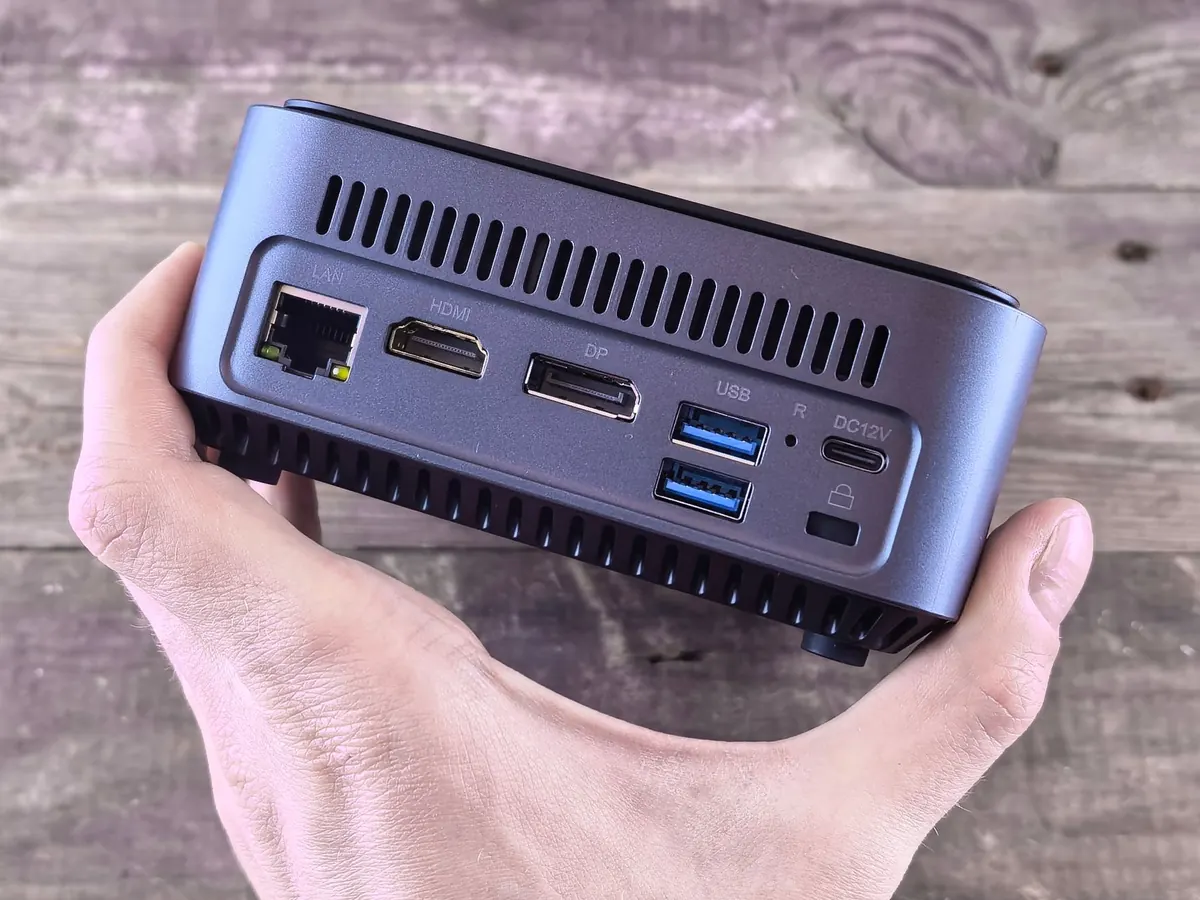
A mini PC with 32 GB of RAM and a middling integrated GPU now costs roughly what a mid-range phone does, and that is enough hardware to run a capable open-source language model entirely offline. No subscription, no rate limits, no prompts leaving your desk. Getting there takes an evening rather than a weekend, but three decisions matter more than everything else combined: how much memory you have, which quantization you download, and how much context you ask the machine to hold.
What $500 Actually Buys
Shop for memory first and everything else second. Sixteen gigabytes is the floor for anything pleasant; 32 GB is the comfortable target and the single biggest upgrade you can make at this price. Models are loaded into RAM (or into the slice of RAM your integrated graphics can borrow), and once you run out, performance collapses into disk swapping.
Look for a recent eight-core mobile chip: a Ryzen 7 7840HS or 8845HS, a Ryzen AI part, or an Intel Core Ultra 5 or 7. Their integrated graphics can be handed a share of the work, which is worth real speed. Skip 8 GB machines, and skip thin clients with soldered single-channel memory. Memory bandwidth affects generation speed more than core count does, which is why a dual-channel 16 GB box often beats a single-channel 32 GB one running a model that fits inside 16 GB.
Install a Runtime in Ten Minutes
You have three reasonable choices. Ollama is a terminal tool that handles model downloads and hardware detection for you. LM Studio wraps the same idea in a graphical interface with a built-in model browser. llama.cpp gives you the most control and the most knobs to turn.
- Update the operating system and confirm you have at least 40 GB of free space on the internal SSD.
- Install Ollama from its official site, or LM Studio if you would rather click than type.
- Open a terminal and check the installation responds: ollama --version.
- Pull something small to prove the pipeline works: ollama run gemma2:2b. It downloads a couple of gigabytes and drops you into a chat prompt.
- Type a question, watch it answer, then leave with /bye.
If that produced coherent text, the hard part is over. Everything after this is tuning.
Choose a Model That Fits Your Memory
Open models are distributed in quantized formats, usually GGUF files, which compress the weights to four or five bits with surprisingly little quality loss. As a rough rule, a Q4 quantization needs about half a gigabyte of memory per billion parameters, plus overhead for the context window:
- A 3B model at Q4 lands near 2 GB. Fast, light, fine for summaries and rewrites.
- A 7B or 8B model at Q4 needs around 5 GB. This is the sweet spot for a 16 GB machine.
- A 14B model at Q4 wants roughly 9 GB and starts to reward 32 GB of RAM.
- A 32B model at Q4 climbs toward 20 GB and will run on 32 GB, slowly, mostly on the CPU.
Start with an 8B model at Q4_K_M. Llama 3.1 8B, Qwen2.5 7B and Mistral 7B are all widely available in that shape. Before you download anything, check the file size on the model page and compare it against your free RAM. Then add a few gigabytes of headroom for the context cache.
Tune the Three Settings That Matter
Context length
Every token of context occupies memory, and a 128k window can swallow more RAM than the model itself. Set 4,096 or 8,192 tokens to begin with. Raise it only when a real task needs it, and watch memory use as you do.
Thread count
Match the thread count to your physical cores, not your logical ones. Hyperthreading usually costs performance here rather than adding it. On an eight-core machine, eight threads is the starting point.
GPU offload
Integrated graphics share system memory, so you often need to allocate more of it in the BIOS first — many mini PCs default to 512 MB of reserved graphics memory when they will happily give you 4 or 8 GB. In llama.cpp, the flag controlling how many layers go to the GPU is -ngl. Ollama detects hardware on its own, but it benefits from the larger BIOS allocation just the same.
Small change, large effect: raise reserved graphics memory in BIOS, reboot, and re-measure before you assume your machine is too slow.
Give It a Front End
A terminal works, but a chat interface makes the setup genuinely usable. Ollama serves an API on your local machine, and tools like Open WebUI, Jan or LibreChat will connect to it, giving you conversation history, system prompts and file uploads. Because the endpoint is just a local address, any application that speaks the same API format can use your model — a note-taking app, a code editor, a script that rewrites your commit messages.
Set the server to stay loaded between requests if you use it throughout the day. Reloading a model from disk each time is the difference between a snappy assistant and a cold one.
Where It Will Disappoint You
- First load is always slow. The second run is much faster because the operating system has cached the file.
- Thermals matter. Mini PCs throttle in small enclosures. Give it airflow, and check the fan curve if responses slow down after twenty minutes.
- Big models reason better but crawl. A 32B model on CPU-only inference is a tool for batch jobs, not conversation.
- Quality is not frontier quality. Expect a competent drafting partner, not an oracle.
A Sensible Way to Start
Spend the first hour on the smallest model you can find. Confirm the runtime works, that the API responds, and that your chat interface connects. Then step up to an 8B model at Q4 and live with it for a week before downloading anything larger. Keep a plain text file listing models you have tried, their file sizes and whether you actually used them; it will save you from re-downloading a 20 GB file you abandoned in March. Back up your settings, put the machine on Ethernet if it stays on, and let it be boring. A local model that quietly answers questions every day is worth more than a bigger one you keep meaning to configure.
Photo: Andrey Matveev / Pexels